Walk-Forward Analysis With AI and the Option Omega MCP
Use the Option Omega MCP to run walk-forward analysis with AI: optimize on past data, freeze your settings, and test them on the next unseen months.
“Find the best settings” is an easy request to give an AI. A more useful request is: find settings using only the past, then show me how they performed on months they had never seen.
That is walk-forward analysis. With the Option Omega MCP, an AI assistant can coordinate the process: run an optimization on one date range, carry the selected settings into a later backtest, retrieve the results, and repeat as the dates move forward. Option Omega supplies the historical backtests; the AI handles the sequence and helps you read the evidence.
The October 20 episode of Fix My Backtest, with Mark Anderson, contrasted two ways of choosing settings, picking the top score or a stable neighborhood, and how each held up on months it hadn’t seen. This walkthrough adapts that teaching example into a workflow for a connected AI assistant, with prompts to copy.
What is walk-forward analysis?
Walk-forward analysis tests a repeatable process for selecting strategy settings. Choose settings using a past period, called the training or in-sample window. Freeze those settings and backtest them on the next period, called the test or out-of-sample window. Move both windows forward and repeat.
For a rolling 12-month training window followed by a 3-month test window, the first rounds look like this:
| Round | Choose settings using only | Test the frozen settings on |
|---|---|---|
| 1 | January–December 2023 | January–March 2024 |
| 2 | April 2023–March 2024 | April–June 2024 |
| 3 | July 2023–June 2024 | July–September 2024 |
| … | Move forward three months each round | Keep test windows separate |
| 11 | July 2025–June 2026 | July–September 2026 |
Combine only the test-window trades in chronological order to see how the selection process held up. The training windows overlap, which is expected. Each test quarter appears once.
A completed test quarter can enter a later training window because it is now history. It must never influence the settings selected for its own test.
How the Option Omega MCP makes this easier
MCP stands for Model Context Protocol. It lets an AI assistant use tools in your Option Omega account. Instead of manually changing dates and copying results across repeated runs, you can describe the research process in plain English.
The work is divided like this:
| Task | What happens |
|---|---|
| Read your starting strategy | The AI retrieves a saved backtest and its settings through the MCP. |
| Compare settings on past data | Option Omega runs the requested Optimizer sweep on the training dates. |
| Choose and freeze a candidate | The AI applies the selection rule you specified and records the chosen settings. |
| Test the next quarter | Option Omega runs a separate backtest with those settings on the later dates. |
| Review the evidence | The AI retrieves metrics, trade logs, and equity data, then assembles a report. |
This uses the MCP’s existing backtest and optimization tools. The AI coordinates the walk-forward loop and calculates any combined statistics from the returned data. A combined chart or report is an analysis assembled by the assistant, rather than a single Option Omega backtest output.
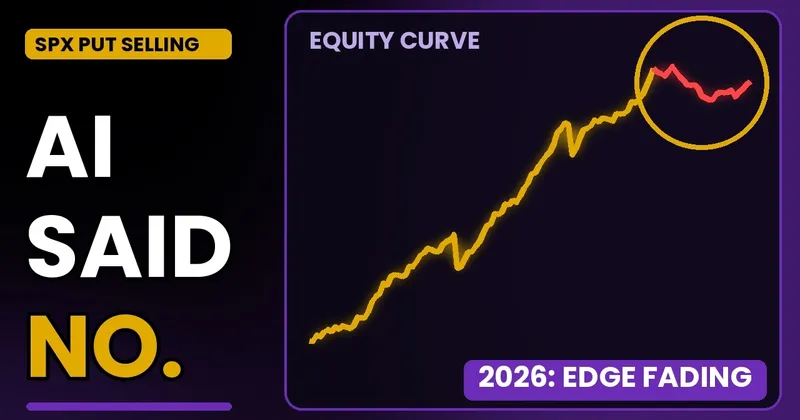
For another example of that research loop, see backtesting an SPX put-selling strategy with AI, where further checks changed the conclusion about a promising result.
Connect your AI assistant to Option Omega
Use an AI app that supports a remote MCP connection, such as a compatible Claude or ChatGPT setup. The connection is included with Option Omega Essential, Plus, and Premium, including trials; your AI app has its own access requirements.
- Open your AI app’s connector or MCP settings and add the server address:
https://mcp.optionomega.com/mcp. - Sign in to Option Omega and approve the connection.
- Ask the assistant to list your saved backtests and identify the strategy you want to study.
The MCP setup page has the connection details. Once connected, start with:
List my saved Option Omega backtests. Help me identify the SPX 0DTE iron condor I want to analyze. Retrieve its full settings and summarize the legs, position size, entry rules, exits, commissions, slippage, and starting funds. Do not change the saved original.
Starting from a saved strategy gives the AI an exact baseline. It also keeps a casual phrase such as “a 2x stop” from silently becoming a different exit rule. Ask it to show the actual loss threshold and whether the stop applies to the whole position or individual spreads.
Step 1: Define the experiment before looking at results
The episode’s teaching setup has 72 combinations: four short-strike deltas, three entry times, two profit targets, and three stop-loss choices. The underlying, 0DTE expiration, 25-point wings, one-contract size, and a fixed late-day exit stay fixed.
You can start smaller. For a first MCP walk-forward study, vary only entry time: the saved baseline’s entry time plus one earlier and one later entry time. Keep every other setting from the saved baseline. That makes it easier to verify what changed and requires fewer tests.
Decide the selection rule before the first optimization. For this small example, choose the entry time with the highest training-period net profit after configured costs, breaking ties by smaller maximum drawdown, then earlier entry time. That is a simple rule to audit, not a claim that maximizing profit is the best selection method.
Plan a rolling walk-forward study of this saved backtest. Use 12 calendar months for training and the next 3 calendar months for testing. Start training on January 1, 2023, with the first test quarter beginning January 1, 2024. Continue through the test quarter ending September 30, 2026. Show all 11 date pairs before running anything.
Vary entry time only: the baseline entry time plus one earlier and one later entry time. Keep all other baseline settings fixed, including starting funds, one-contract sizing, commissions, slippage, and exits. Verify that the baseline uses that sizing and that the costs are configured; ask me for any missing values. Select the highest net training profit, breaking ties by smaller maximum drawdown and then earlier entry time. Do not use test-period results to choose settings.
Ask the AI to check your available usage before starting. This small design calls for 11 training optimizations, each with three candidates, followed by 11 selected test-period backtests. Plan limits may require splitting the work across days. A larger grid needs more capacity, and the assistant should confirm which parameter ranges the Optimizer supports before submitting it.
Step 2: Run one training window, then freeze the winner
The first optimization uses January 1 through December 31, 2023. The AI should discover the supported Optimizer parameter, submit the entry-time sweep, wait for completion, and retrieve all three results.
Run the first training optimization using only the agreed 2023 dates. Wait until it completes, then retrieve all three candidates. Apply our selection rule and record the selected entry time, the full strategy settings, the training dates, and the returned optimization ID. Freeze that configuration before requesting any results from the January–March 2024 test window.
The record matters. It lets you check that the assistant tested the configuration it actually selected. An optimization starting successfully is not a completed result; failed runs and missing metrics need to remain visible in the report.
Step 3: Test the next quarter without retuning
Now run a separate backtest from January 1 through March 31, 2024, with the frozen settings.
Backtest the frozen first-round configuration on January 1 through March 31, 2024. Change only the date range. Retrieve the completed results and full trade log, and record the run ID. Report net profit, trade count, win rate, average winner, average loser, and maximum drawdown. Keep training and test results in separate columns. Do not try the other entry times on this test quarter to pick a better winner.
An ugly quarter is useful evidence. Switching to whichever entry time would have won that quarter turns the test into another optimization.
The same principle applies if you compare selection methods. The episode contrasts choosing the top result with choosing settings whose neighbors also work. To test both, define both rules precisely in advance, including what counts as a neighbor and how candidates are ranked. “Pick the safe zone” alone leaves too much room for the AI to change its interpretation between rounds.
For more on examining neighboring settings, read the Optimizer walkthrough. Neighborhood checks complement testing on later dates; both can still be overfit if you repeatedly change the rules after seeing the answers.
Step 4: Repeat and combine only the unseen periods
Once the first round is verified, ask the AI to continue the same process through the remaining quarters.
Repeat the agreed process for rounds 2–11. For each round, use only its training window to select settings, freeze the selected configuration, and run it on the next test quarter. Preserve the settings and returned IDs for every round. Respect the MCP’s usage limits and wait for each job to finish. Report failures or unavailable data rather than filling gaps with estimates.
Build a table with training dates, test dates, selected entry time, training profit, test profit, test trade count, and test maximum drawdown. Retrieve all pages of each test trade log. Combine only the non-overlapping test trades in chronological order, using the agreed fixed one-contract sizing. Show cumulative net P&L and calculate combined drawdown from the continuous series. Do not add quarterly drawdowns or average quarterly Sharpe ratios. Clearly label statistics you calculate yourself.
The combined result evaluates the selection process, even though the chosen entry time may change each quarter. Check whether gains depend on one exceptional quarter, how large the losing trades are, and whether the remaining profit survives realistic costs. A high win rate alone cannot answer those questions.
What the episode’s teaching example shows
The A/B figures below are invented teaching data from the presentation. They are not Option Omega backtest results or results generated by the prompts above.
| Metric | A: Pick the top score | B: Pick a stable neighborhood |
|---|---|---|
| Profit on months used to pick settings | +$13,200 | +$7,400 |
| Profit on unseen months | −$15,200 | +$8,500 |
| Win rate on unseen months | 90.2% | 75.5% |
| Worst peak-to-trough drop on unseen months | $18,100 | $1,700 |
The illustration shows why the training winner can disappoint later. A still wins about nine trades out of ten, but its larger losses overwhelm those wins. B looks less impressive during selection and holds up better on the unseen periods in this made-up comparison.
Your MCP study must supply its own evidence. It might favor either method, show neither survives costs, or produce too few trades to support a conclusion.
Walk-forward analysis with MCP: common questions
Can the Option Omega MCP run walk-forward analysis?
An AI assistant can coordinate walk-forward analysis through the MCP by combining date-limited optimizations with separate backtests on later periods. Option Omega runs each historical test; the assistant manages the sequence and assembles the report. There is no dedicated walk-forward call required for this workflow.
Is the AI inventing the backtest results?
The historical run results come from Option Omega’s backtesting engine. The assistant may calculate additional summaries or charts from those results. Ask it to preserve run IDs, show the settings, and distinguish returned metrics from its own calculations so you can verify the report.
Does walk-forward testing prove a strategy will make money?
No. It checks how a predefined selection process performed on later historical periods. Changing the process after seeing those periods weakens that evidence. Treat any revised process as a new hypothesis that needs a further untouched period.
Can I do this without writing code?
You can request the workflow in plain English. Depending on the AI app, the assistant may need data-analysis tools to combine trade logs and calculate a continuous curve. The MCP supplies the underlying backtest data; if your assistant cannot perform an aggregation, ask for the per-window report rather than an unsupported combined statistic.
Try it on a backtest you already know
Connect your AI assistant, choose a saved strategy, and start with one training window and one later test window. Verify that pair, then extend the process. That is a concrete way to use AI for research: turn a question about whether an edge holds up into a sequence of tests you can inspect.
Connect to the Option Omega MCP or start a free trial to try the workflow with your own strategy.
Watch the episode: Fix My Backtest: With Mark Anderson.
Backtest results are hypothetical and do not guarantee future performance. The A/B comparison in this article uses invented teaching data. Options trading involves substantial risk.